BMO SOP module
Part of BMO HRM · Explore SOP Engine on HRM.my ↗
Every policy read, understood and signed. On any device.
Turn policies, onboarding, checklists and emergency procedures into step-by-step walk-throughs your staff finish on a PC or their own phone, with quizzes, e-signatures and a record you can show an auditor.
- Sign by QR code on the phone
- English · Bahasa Melayu · 中文
- 8 step types
- Tamper-evident register
- Prepared → reviewed → approved

The SOP workflow, at a glance
How the SOP module works:
from policy to signed record.
HR sets it up. Employees complete it. Every signature stays linked to the policy version they actually read.
-
01HR / admin
Prepare & publish
Build a version. When approval is enabled, named reviewers and approvers sign before publication.
A versioned SOP -
02HR / admin
Assign the SOP
Choose everyone, a department or specific staff. Set a due date or auto-assign to new joiners.
The right people -
03Employee
Read & complete
Open My SOPs. Read, watch, answer a quiz or finish a checklist, depending on the steps HR adds.
Completed steps -
04Employee
Type name & sign
Enter your own name and sign on screen, or scan the QR code to sign on your phone.
A signed acknowledgement -
05HR / manager
Track & keep proof
Review progress and overdue staff. View the signature record, export reports or print a certificate.
A traceable record
Typed name + signature
SOP version + language
Date, time + device details
Register entries are chained with a fingerprint. A changed or deleted record is flagged.
Why
“Please read the attached policy” is not proof
Paper forms get lost, emails get ignored, and when an auditor or a client asks who agreed to which version, nobody can answer quickly.
Built once by HR
Upload the PDF you already have, or build steps: read, quiz, video, checklist, form. Publish in three languages.
Done by staff anywhere
Desktop or phone, no app to install. One step at a time, then a signature on screen or by scanning a QR code.
Kept as a record
Every signature lands in an acknowledgement register with a certificate, coverage reports and an audit log.
How it works
Create, assign, track
Three steps for the admin. Four for the employee: open, go through, tick, sign.
Create
Upload a PDF or Word file and it becomes a signable SOP in a minute. Or build one step by step.

Assign
Give it to everyone, a department or chosen people, with a due date. New joiners can get it automatically.

Track
See who has finished, who is in progress and who is overdue, down to the step where each person stopped.

For HR and managers
Everything in one dashboard
Library, programs, assignments, acknowledgements, reports and settings, one tab apart.
See what needs attention today
The dashboard shows SOPs in progress, overdue staff, the on-time rate, signatures in the last 30 days and SOPs due for review. Click any number to see the people behind it.

A library for every SOP
Policies, onboarding, checklists, drills and emergency procedures in one list, with status, version, languages and how many people have signed.
- Upload an existing PDF or Word document
- Add ready-made SOPs in English, Bahasa Melayu and Chinese
- Preview as an employee, print a controlled copy

Build steps, not paperwork
Mix step types to fit the SOP. Each new step can start from a ready example, so nobody starts from a blank box. Publishing locks the content as a version; changes become a new version, and you choose whether people sign again.

Programs for onboarding
Bundle the welcome pack, IT policy, data notice and code of conduct into one program. Assign it once, or let every new joiner in a department get it automatically. Staff sign once at the end.
- Steps in order, or in any order
- Re-acknowledge every N months
- Due dates from assignment or from joining date

Reports and a full audit log
Coverage by SOP and by department, overdue lists, quiz results, checklists and drills. Every admin action (publish, assign, reset, setting change) is logged with who and when. Export to Excel (CSV).


Help on every page
A guided tour highlights each part of the page the first time someone opens it. Picture guides and the full user guide are one click away, so new admins get going without training.

For employees
Simple enough to need no training
Staff open My SOPs, see what is due, and go through one step at a time. Progress is saved, so they can stop and continue later.
- Works in the phone browser, no app to install
- Documents open inline; quizzes show what to fix and allow a retry
- A certificate at the end, and nothing to email back

Read the real document, then agree
Upload the PDF you already use. On a computer, staff read it right on the page with page numbers, zoom and print, in the same layout as your printed copy. On a phone it opens with one tap.
- “I agree” stays off until they scroll to the end and tick the statement
- The record shows the exact file and version they read
- Word, Excel and image files can be attached too

Sign on your phone with a QR code
On a shared office PC, staff point their phone camera at the QR code, type their name and sign with a finger. The PC screen completes by itself.
- One-time link that expires after 15 minutes
- Or sign on the screen with a mouse or finger
- The name must be typed; it is never filled in for them

English, Bahasa Melayu and 中文
Write the SOP once, add translations, and each employee reads in their own language. The register records which language they read and signed in.

PDF & signing samples
See what employees read, acknowledge and sign
Open the sample document, then explore the product screens for each step.
View-only product examples · Fictional ABC Sdn Bhd · Sample employee data
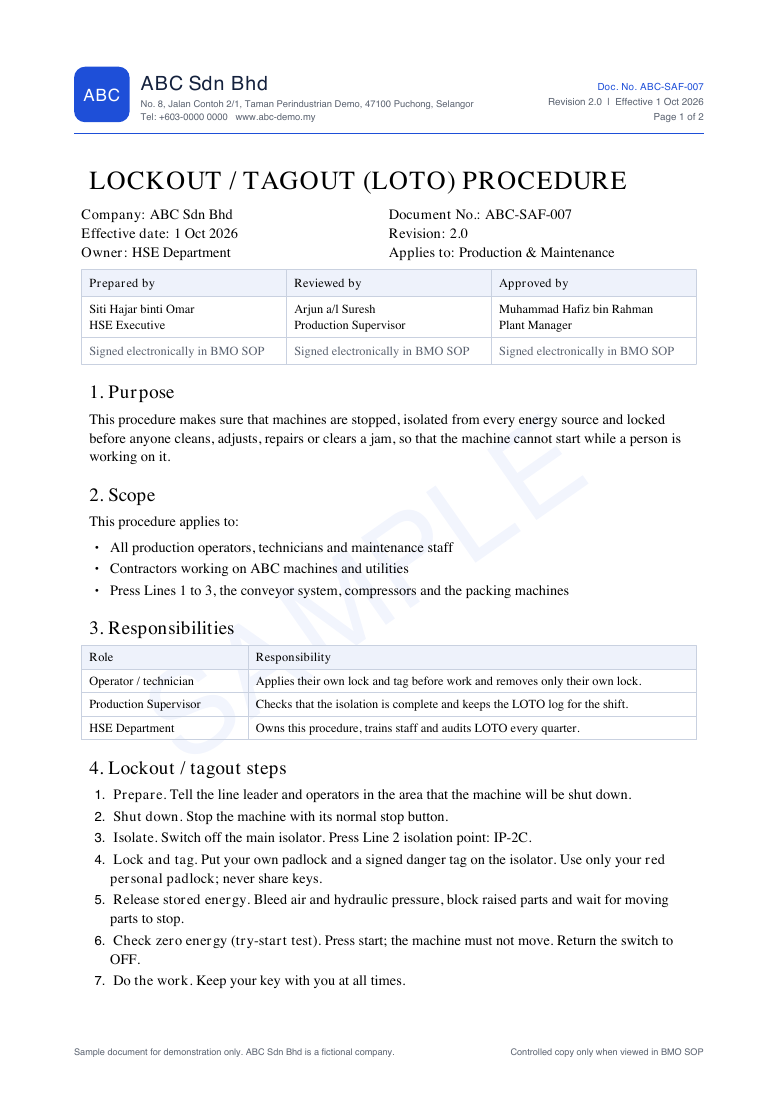
Preview: page 1 of 2. Open the PDF to read both pages.
A two-page sample marked SAMPLE, supplied for demonstration.
01 Read the attached PDF
Staff read the document on the page. “I agree” stays off until they reach the end and tick the statement.
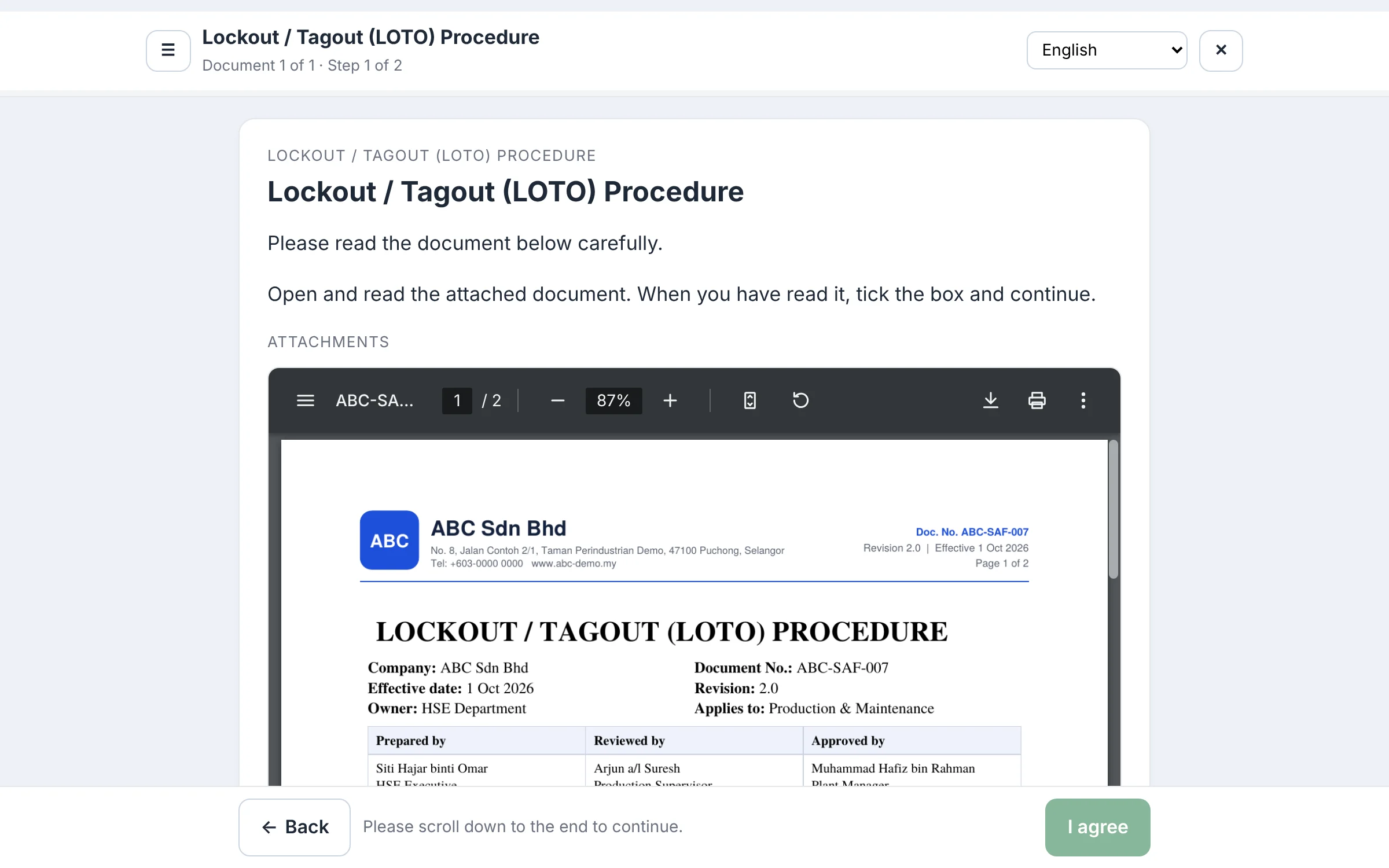
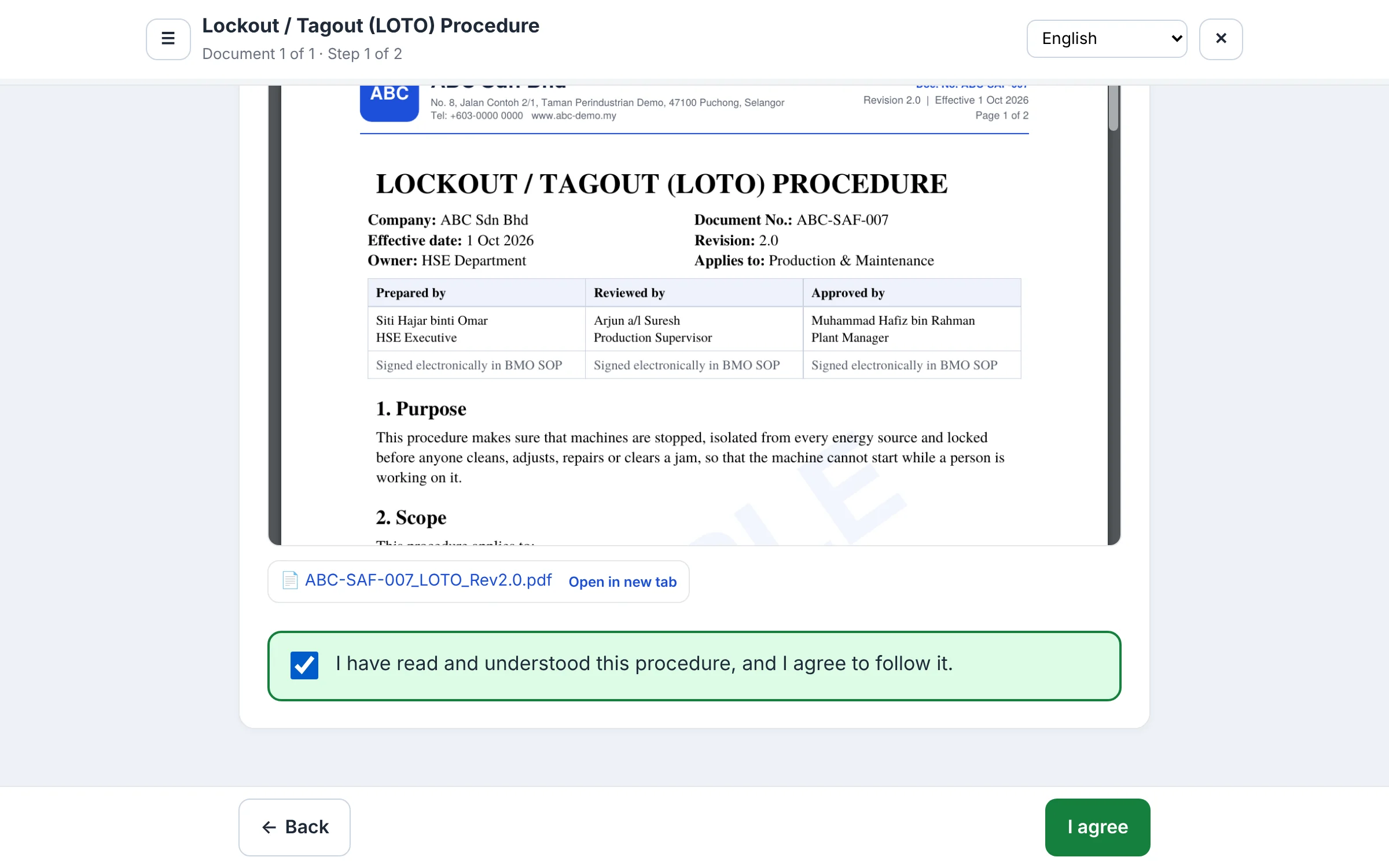
02 Tick the acknowledgement
After scrolling to the end, the employee ticks the statement. The “I agree” button becomes available.
03 Type your name & sign
Type your own name and sign on screen, or scan the QR code to sign on your phone. The acknowledgement is linked to the SOP version.
The record
Proof you can show an auditor
Each signature is one line in the acknowledgement register, chained to the one before it with a fingerprint. If a record is changed or deleted, the register shows it.
| Who | Employee name, number, department and typed name |
|---|---|
| What | SOP, version and language read |
| When | Started, finished all steps, signed |
| How | Signature image; computer or phone (QR) |
| Where from | IP address and browser / device |
| Check | Record fingerprint, verified on every view |

A certificate for every signature
Print or save a one-page certificate with the employee, SOP, version, date, signature and record fingerprint. Export the whole register to Excel (CSV) for an audit or a client.

Document control
Version control an auditor can follow
Who wrote this version, who checked it, who approved it, and which version each employee signed. One page answers the questions an ISO audit or an incident investigation will ask.
When review and approval is enabled in SOP Settings:
- Prepared
- Reviewed e-signature
- Approved e-signature
- Published to staff
Prepared, reviewed, approved
Each SOP names its reviewer and approver. A new version goes to them for review and approval, and staff only see it after the approver signs it off.
- Each sign-off: a tick, a comment and an e-signature
- The person who prepared a version cannot review or approve it
- Return for changes, with the reason recorded
- Locked while under review; a content fingerprint proves the approved version is the one published

One version control record per SOP
Every version of the SOP with what changed, who prepared, reviewed and approved it (with signatures), which files were uploaded and by whom, and when it was published, took effect and was replaced.
- Full approval trail with date, comment, signature and IP address
- Open or print any earlier version, for example 1.0 when 1.1 is current
- Old copies print stamped SUPERSEDED, “do not use for work”
- Print the whole record for the audit file

Who signed which version
Every employee against every version: signed, covered by an earlier signature after a small correction, in progress, overdue or not signed. Did Ali sign 1.0? Does 1.1 need a new signature? It is all in one table.
- Filter by department, include former staff
- Export to Excel (CSV)
- Print an all-employee progress report: given, due, started, signed, time taken

Incident check
After a machine breakdown or a near-miss, pick the employee, the SOP and the date and time. You see which version was in force, who prepared, reviewed and approved it, and whether that employee had read and signed it, with their full history.
- Print it as an evidence report with an incident reference
- It lists the facts; deciding responsibility stays with management

Emergency procedures, two taps away
Fire, medical, flood, power outage: published emergency SOPs get their own page with the emergency number, assembly point and contacts. Print a wall poster with a QR code that opens the same page on any phone.

Ready-made examples
Ten industry case studies to start from
Each sample shows the flow, the setup and the result. Add one to your library as a draft, adjust the wording, publish.

Questions
Do employees need to install an app?
No. Staff use their normal BMO login in any browser, on a PC or a phone. Signing by QR code needs only the phone camera.
Can I use the policy documents I already have?
Yes. Upload a PDF, Word, Excel or image file (up to 20 MB). PDFs open directly on the page and on phones. The SOP is ready to assign in about a minute.
Can I add training videos?
Yes. Paste a YouTube or Vimeo link, or upload an MP4 or WebM file up to 100 MB. For uploaded videos you can require a minimum percentage watched.
What is recorded when someone signs?
The typed name, the signature image, the SOP and its version, the language read, the date and time, whether it was signed on a computer or a phone, the IP address and the browser or device.
What happens when a policy changes?
Make a small correction (for example 1.0 to 1.1, no re-signing) or a major change (to 2.0, everyone signs again). Earlier signatures stay recorded against the version people actually signed.
Who approves an SOP before staff see it?
When review and approval is switched on in SOP Settings, each version is prepared by an SOP admin, then reviewed and approved by the people named on that SOP, who sign electronically. Only the approver's sign-off publishes it, and the person who prepared a version cannot review or approve it.
Can I see which version each employee signed?
Yes. The version control record shows every employee against every version: signed, covered by an earlier signature after a small correction, in progress, overdue or not signed. Earlier versions can still be opened and printed; printed old copies are stamped SUPERSEDED.
Which languages are supported?
English, Bahasa Melayu and Chinese. You write the SOP once and add translations; each employee picks their language.
Is it part of BMO?
Yes. It is a module inside BMO (login.bmo.my), using your existing employees, departments and permissions.
See it with your own policies
We will set up a demo with one of your documents, so you can sign it on your own phone.