Release budget at your pace
With Prorate on, choose periods of 1, 2, 3, 4, 6 or 12 months, always starting in January. Set the rule once for everyone in that employee type.
BMO e-Claim System
New budget & approval controls · October 2026
Give every employee type a clear claim budget and route each expense to the people who should approve it. From receipt upload to payroll, manage staff claims on the web and mobile app.
Part of BMO HRM · Paperless submission · Multilevel approvals
More control, less administration
Two new controls help HR prevent overspending and keep approvals aligned with your company policy. Enable either feature when your company is ready.
Set annual entitlements, release them by period and stop over-budget claims before submission.
Explore budget control 02 / APPROVALSend mileage to the Fleet Manager, travel to Finance and a Director’s flights to the Board.
Explore approval routing01 / Claim Budget by Employee Type
Define an annual budget for each employee type and claim type. BMO splits it into periods, shows the available balance on the claim form and blocks submissions that exceed it.
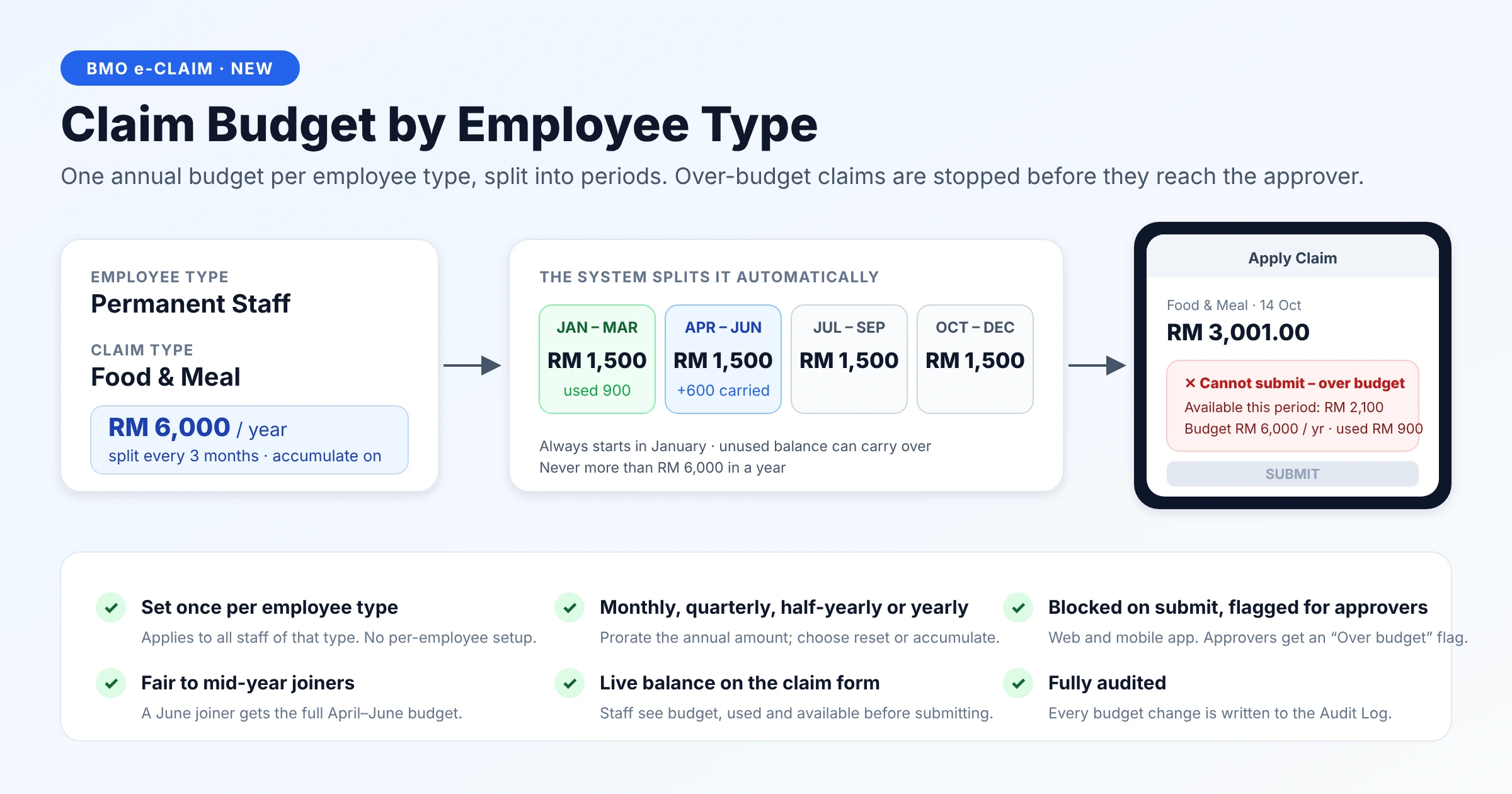
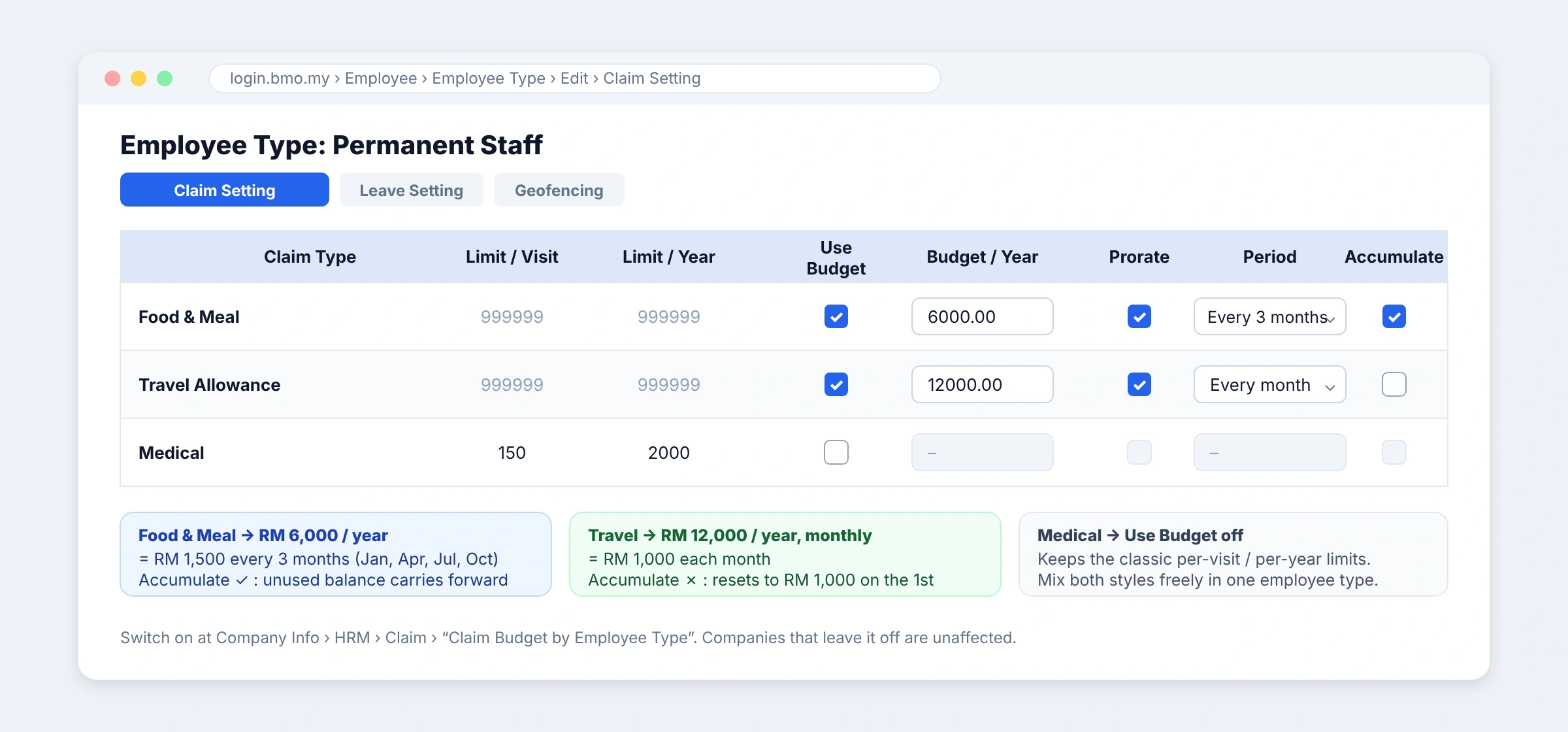
With Prorate on, choose periods of 1, 2, 3, 4, 6 or 12 months, always starting in January. Set the rule once for everyone in that employee type.
Enable Accumulate to carry unused balance into the next period within the year. Keep it off to reset each period. The annual cap applies and balances reset on 1 January.
Staff see budget, used and available amounts on web and mobile. A later edit that exceeds the budget is flagged for approvers. Budget rule changes go into the Audit Log.
Company Info › HRM › Claim › Claim Budget by Employee Type = Yes.
Employee › Employee Type › Claim Setting: tick Use Budget, enter Budget/Year, then choose Prorate, Period and Accumulate as needed.
The rule covers staff of that employee type. Claim types without Use Budget can retain their classic per-visit and per-year limits.
02 / Claim Approval by Claim Type
Choose an approval set for each claim type, then add employee-type exceptions where your policy needs them. Update the mapping once, and it applies from the next claim.
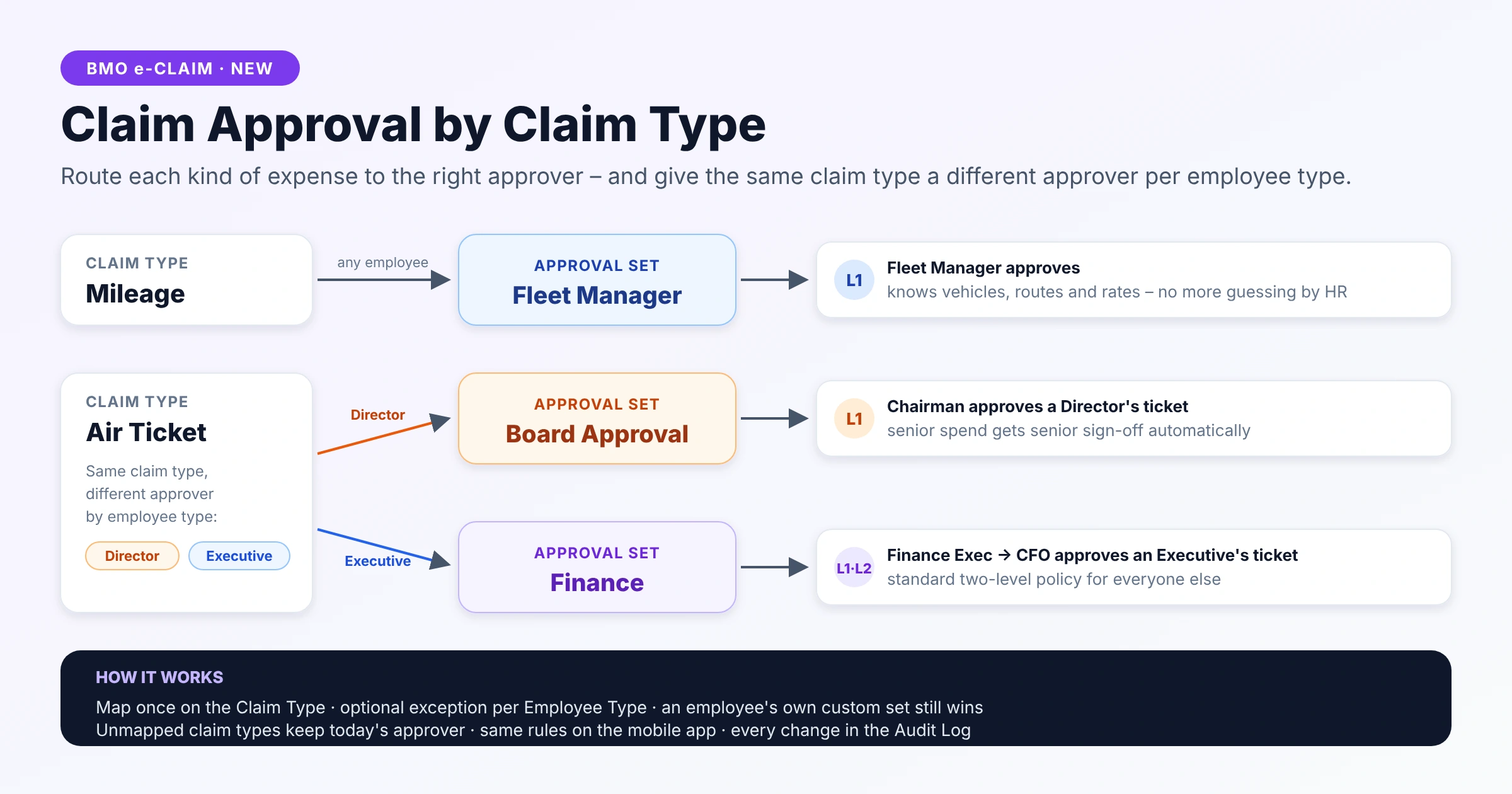
Map mileage to the Fleet Manager, travel to Finance or medical to HR. Employees see the mapped approvers before submitting.
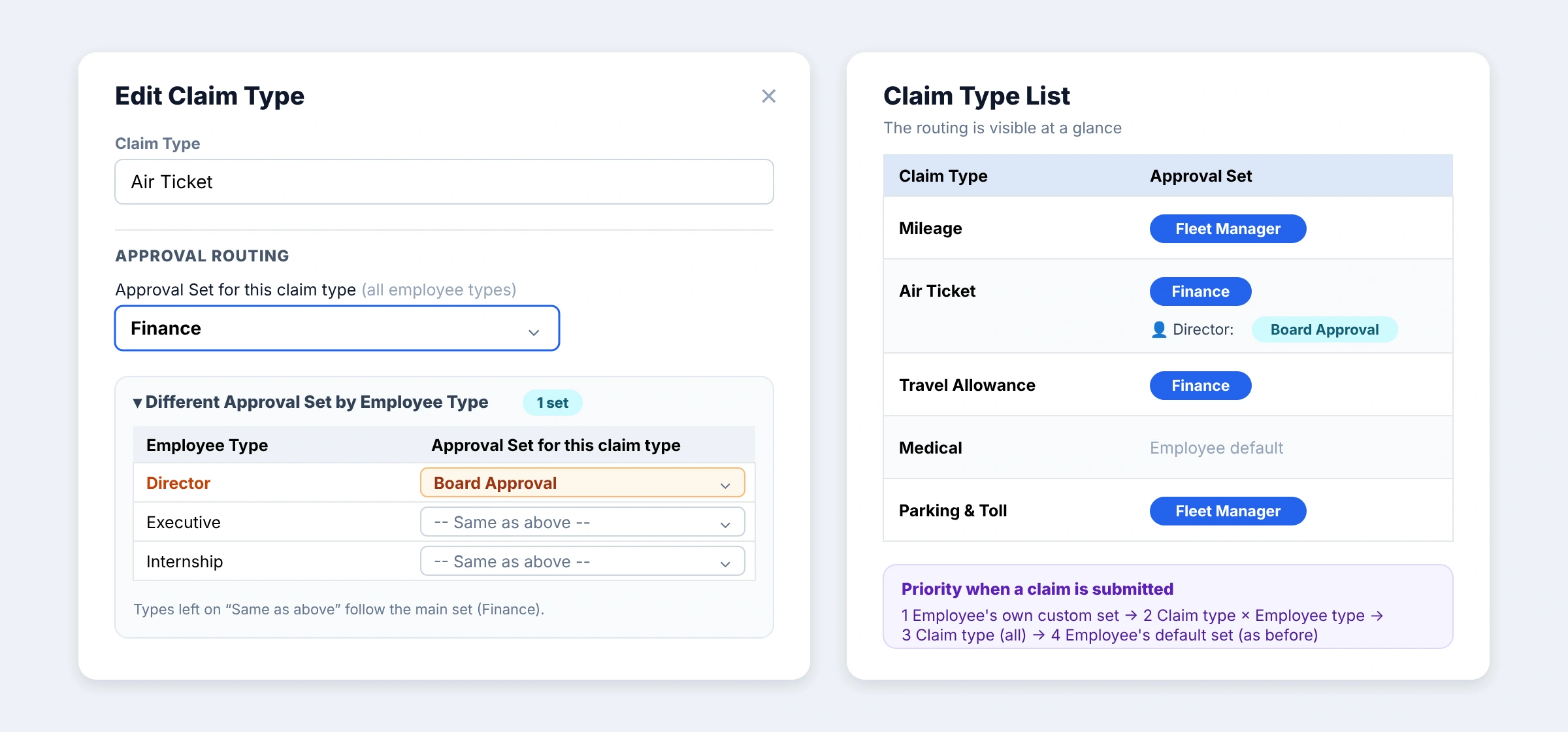
Give Directors a Board Approval route for Air Tickets while Executives use Finance. An employee’s own custom approval set retains first priority.
Pending claims retain their original approvers. Unmapped claim types fall back to the employee’s default set. Changes are recorded in the Audit Log.
When a claim is submitted
Company Info › HRM › Claim › Claim Approval By Claim Type = Yes.
e-Claim › Claim Type › Edit › Approval Routing: choose the main Approval Set. Add exceptions under Different Approval Set by Employee Type.
Select a claim type on the claim form. The Approval Table switches to its mapped approvers. The Claim Type list also shows the routing and exceptions.
The complete eClaim workflow
The new controls build on the claim workflow your team already uses.
Upload receipt photos or multiple attachments from web or mobile. Select a claim type and check the available budget.
Follow a single or multilevel approval chain. Approvers can approve, reject or modify the claim amount.
Move approved claims into finance processing and connect reimbursement to payroll according to your setup.
Review claim summary reports, monitor expenses and keep an audit trail of claim activity and rule changes.
Practical answers
Understand budgets, approval exceptions and what happens to existing claims.
Set an annual amount for each employee type and claim type. Enable Prorate to divide it into periods of 1, 2, 3, 4, 6 or 12 months, starting in January. For example, RM 6,000 a year becomes RM 1,500 every three months.
Yes. Turn Accumulate on to carry unused balance into the next period within the same calendar year. Turn it off to reset the allowance each period. The annual cap still applies, and balances reset on 1 January.
The employee receives the full allowance for the period they join. For example, a June joiner on a quarterly RM 6,000 annual plan receives the full RM 1,500 April–June allowance.
No. The web portal and mobile app show the budget, used amount and available balance, and block submissions that exceed the available budget. If a later edit puts a claim over budget, approvers see an Over budget flag.
BMO checks the employee’s own custom approval set first, then the claim type’s employee-type exception, then the approval set for that claim type, and finally the employee’s default approval set. Claim types left unmapped keep the employee’s default approvers.
Yes, when the claim types resolve to the same approval chain. After the first line is chosen, the form offers only compatible claim types. Expenses with different approvers must be submitted as separate claims. The mobile app follows the same rule.
No. Changes apply from the next claim; pending claims keep the approvers assigned when they were submitted. An approval set cannot be deleted while a claim type still routes to it.
No. Each feature has its own company setting under Company Info › HRM › Claim. Leave a feature off to keep the existing behaviour. Budget-based rules can also sit alongside classic per-visit and per-year claim limits.
Yes. BMO e-Claim retains receipt and attachment uploads, multilevel approval, finance processing, payroll integration and claim summary reports. Payment workflows depend on your company setup.
Make your claim policy easier to manage
Talk to BizCloud Asia about your employee types, claim entitlements and approval policy. We’ll walk you through the setup.